Configuring Transition Rules
In this article, you can find information on how to configure transition rules in the state model. Transition rules are defined in the Triggers section of a transition and determine the conditions that must be met before Apporetum will move an account from one state to another.
Before configuring transition rules, ensure you have created a transition and completed the General section. See Configuring the State Model for guidance on creating transitions.
Creating a Transition
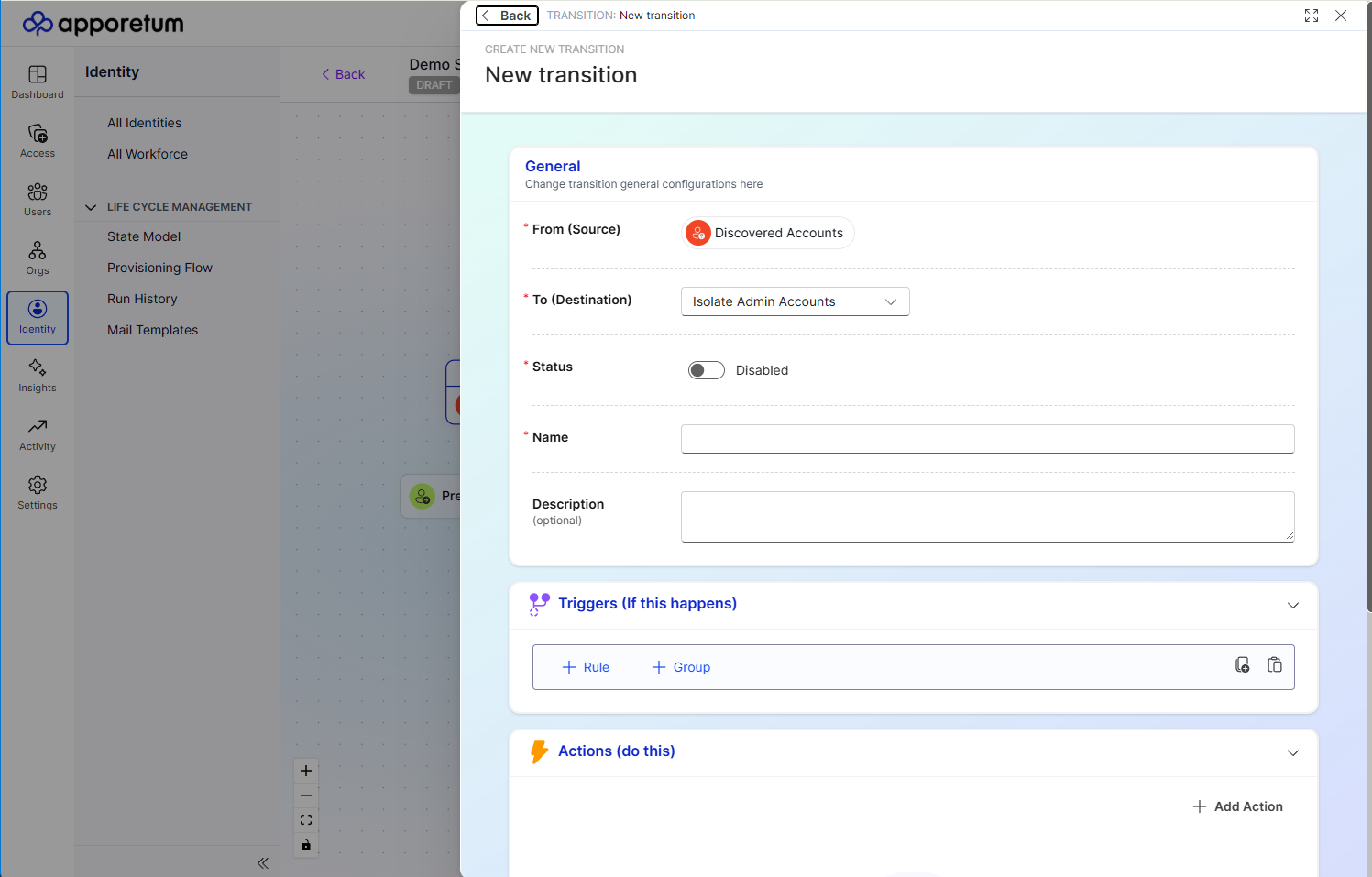 The Create New Transition panel. The General section configures the core properties of the transition. The Triggers and Actions sections are expanded to configure conditions and automated tasks.
- Open your draft state model and select the state you want to create a transition from.
- Select Add Transition to open the Create New Transition panel.
- In the General section, select the destination state from the To (Destination) dropdown. The From (Source) field is pre-populated with the state you selected and cannot be changed here.
- Set the Status toggle. New transitions default to Disabled - toggle it to Enabled only when the transition is ready to be active. Disabled transitions are saved with the model but will not fire during runs.
- Enter a Name for the transition. This is required and should clearly describe the lifecycle event - for example, "Active to On Leave" or "Pre-Start to Day One".
- Optionally enter a Description to provide additional context for other administrators.
- Expand the Triggers (If this happens) section and configure the conditions that must be met for the transition to fire. See Adding a Transition Rule below for full details.
- Expand the Actions (do this) section and select + Add Action to define the automated tasks that run when the transition fires. See Configuring Actions for a full description of each action type.
- Select Save Changes.
How Transition Rules Work
Each state transition has a Triggers section that defines the logic rules an account must satisfy before the transition will fire.
When a state model run executes, the state model evaluates every account against the trigger rules for all applicable transitions. An account moves to a new state only when the rules of the corresponding transition are satisfied.
Rules evaluate against defined conditions. Multiple rules can be combined using AND or OR logic to represent complex business conditions, and rules can be grouped to represent nested logic. The rule builder allows 3 levels of nesting.
Adding a Transition Rule
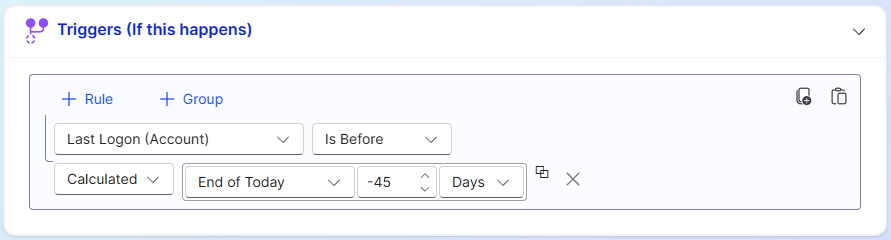 The Triggers section. Each rule row has a Property dropdown, Operator dropdown, and Value field. AND and OR buttons combine multiple rules. The + Group button creates nested rule groups.
- Expand the Triggers section.
- Select + Rule.
- Select a Property from the list of available identity attributes.
- Select an Operator to define how the property is evaluated.
- Enter or select a Value to compare against.
- To add additional rules, select AND to require all conditions to be met, or OR to require any one condition to be met.
- To group rules together, select + Group and configure rules within the group.
- Select Save Changes.
Rule Properties
The Property dropdown lists identity attributes that Apporetum can evaluate. These attributes come from your identity data and include fields such as department, employment status, leave dates, and account type.
Common property examples include:
| Property example | Description |
|---|---|
EmploymentStatus | The current employment status from the HR system |
LeaveStartDate | The date on which a period of leave begins |
LeaveEndDate | The date on which a period of leave ends |
StartDate | The employee's commencement date |
EndDate | The employee's termination or contract end date |
Department | The organisational unit the identity belongs to |
AccountType | The type of account (employee, contractor, service account) |
The properties available in your environment depend on the attributes configured in your provisioning flow and identity data mappings.
Rule Operators
The Operator dropdown defines how the selected property is evaluated against the value.
| Operator | Description | Use when |
|---|---|---|
| equals | The property value exactly matches the specified value | Status must be exactly "Terminated" |
| does not equal | The property value does not match the specified value | Status is anything other than "Active" |
| contains | The property value includes the specified string | Department contains "Finance" |
| does not contain | The property value does not include the specified string | Role does not contain "Contractor" |
| is empty | The property has no value set | End date has not been populated |
| is not empty | The property has a value set | Leave start date has been populated |
| is before | The property date is earlier than the specified date | End date is before today |
| is after | The property date is later than the specified date | Start date is after today |
| is on or before | The property date is today or earlier | Leave start date is on or before today |
| is on or after | The property date is today or later | Return date is on or after today |
Rule Logic
Apporetum supports two logical operators for combining rules.
| Operator | Behaviour | Use when |
|---|---|---|
| AND | All rules in the group must evaluate to true for the transition to trigger | An account must meet multiple conditions simultaneously |
| OR | At least one rule in the group must evaluate to true for the transition to trigger | A transition should fire under any of several different conditions |
Simple AND example
The following rule fires the transition only when an account has both an employment status of "On Leave" and a return date that is today or earlier.
EmploymentStatus  equals          On Leave
AND
ReturnDate        is on or before [today]
Simple OR example
The following rule fires the transition when an account has either a status of "Terminated" or an end date that is in the past.
EmploymentStatus  equals    Terminated
OR
EndDate           is before [today]
Grouped logic example
Rules and groups can be nested to represent more complex logic. The following example fires the transition when the employment status is "Terminated" and either the account type is "Employee" or the account type is "Contractor".
In the Triggers section, this would be configured as:
EmploymentStatus  equals  Terminated
AND
  [Group: OR]
    AccountType   equals  Employee
    AccountType   equals  Contractor
Transition Order and Priority
When multiple transitions are configured from the same state, Apporetum evaluates them in the order shown in the state detail panel. An account moves via the first transition whose rules are satisfied. You can reorder transitions from the state detail view to control which rules take precedence.
Review your rule logic carefully before publishing the state model. Overly broad rules may cause accounts to transition unexpectedly. We recommend running a simulation to validate rule behaviour before publishing. See Simulating the State Model.