Running the State Model
In this article, you can find information on how to manage the state model run schedule and how to access and interpret run history in Apporetum. The model run controls when and how often the published state model executes against your identity data, while run history provides a complete audit trail of all past executions.
Model Run
The Model Run panel sits at the top of the Identity State Model page and controls automated execution of the published state model.
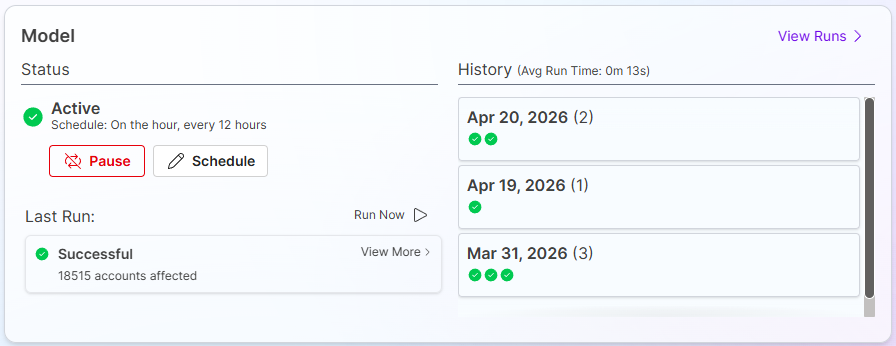 The Model Run panel. The Status field shows whether automatic execution is Active or Inactive. The Schedule button configures the run frequency. Run Now triggers an immediate manual execution.
Run Status
The model run has two statuses.
| Status | Description |
|---|---|
| Active | The state model runs automatically according to the configured schedule. |
| Paused (Inactive) | Automatic execution is suspended. The model will not run until returned to Active. |
To change the status, select Pause to set the run to Inactive, or Enable to set it to Active.
Scheduling the Model Run
- Select Schedule next to the run status.
- Select a schedule from the Presets options.
- Select Save.
The schedule determines how frequently Apporetum executes the state model against your identity data. Scheduling the model run removes the need to manually trigger executions and ensures your identity landscape remains current.
Select a run frequency that reflects how often your identity data source updates. If your HR system pushes data hourly, a matching or slightly longer run interval ensures accounts are processed promptly after changes are detected.
Manual Execution
Select Run Now to trigger an immediate execution of the published state model outside of the schedule. This is useful for:
- Testing the published model against current data after a configuration change
- Processing a batch of known changes (for example, end of financial year terminations) immediately
- Verifying that the model runs correctly after a period of inactivity
Latest Successful Run
The Latest Successful Run panel sits next to the Model Run panel and displays the results of the most recent successful execution.
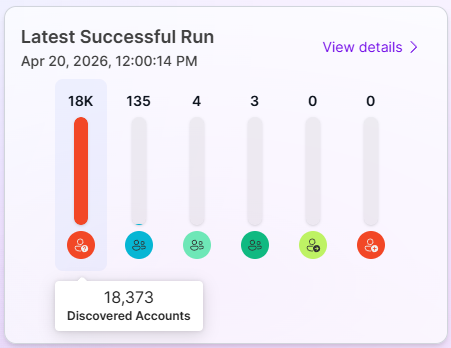 The Latest Successful Run panel. Each state is shown with its current account count. Arrow indicators compare the count to the previous run.
Each state is shown with a count of the accounts currently in that state, along with an arrow indicator comparing the count to the previous run.
| Indicator | Meaning |
|---|---|
| 🟢 Green arrow (up) | The number of accounts in this state has increased since the previous run |
| 🔴 Red arrow (down) | The number of accounts in this state has decreased since the previous run |
| No arrow | The account count is unchanged since the previous run |
Select View Details to navigate to the full Model Execution Results for that run.
Viewing Execution Results
When you open a model execution result - from the Latest Successful Run panel or from Run History - Apporetum presents four tabs.
| Tab | Description |
|---|---|
| Overview | Account count for each state with increase and decrease indicators, comparable to the Latest Successful Run panel. |
| Audit | A chronological record of all actions performed during the run - which accounts were affected, what triggered each action, and what was done. |
| States | Detail for each state in the run. Selecting Actions from a state shows transitions moving accounts to and from that state, including self-connected transitions. |
| Transitions | Lists all transitions, showing the source and destination state for each. Select the arrow on the right of a transition to view its configured Triggers and Actions. The enabled or disabled status is shown in the upper right corner. |
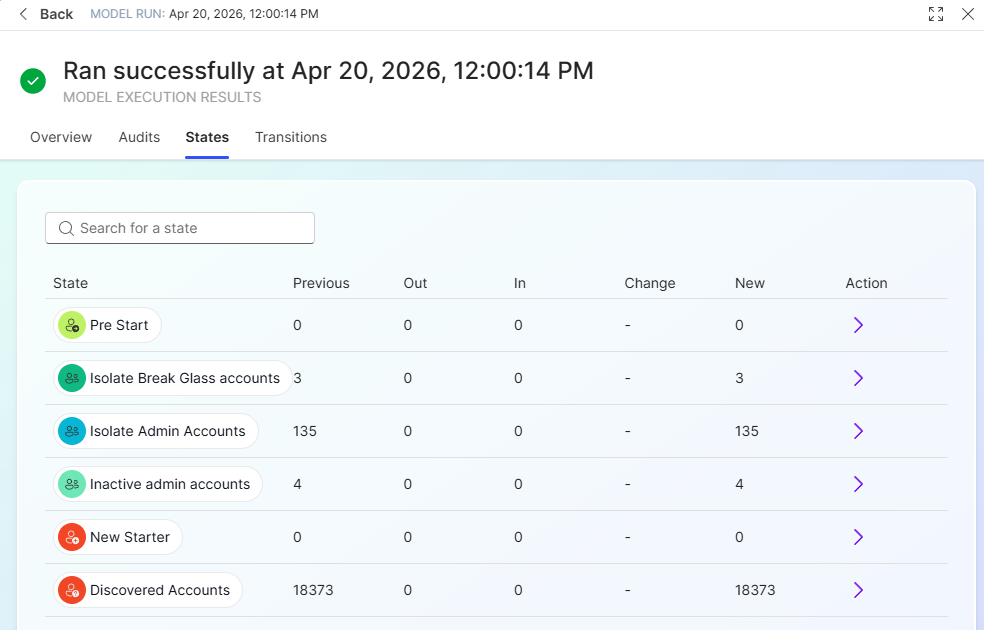
Use the Audit tab when investigating an unexpected account state change. It provides a chronological record of every action performed during the run, including which accounts were affected and what triggered each action.
Run History
Run history provides your organisation with a documented record of all state model executions, supporting audit and compliance requirements by demonstrating that identity governance processes are operating according to policy.
Accessing Run History
There are two ways to access run history in Apporetum.
| Method | Steps |
|---|---|
| Via the navigation menu | Select Identity → Life Cycle Management → Run History |
| Via the state model | Select Identity → Life Cycle Management → State Model → View Runs |
Model Run History View
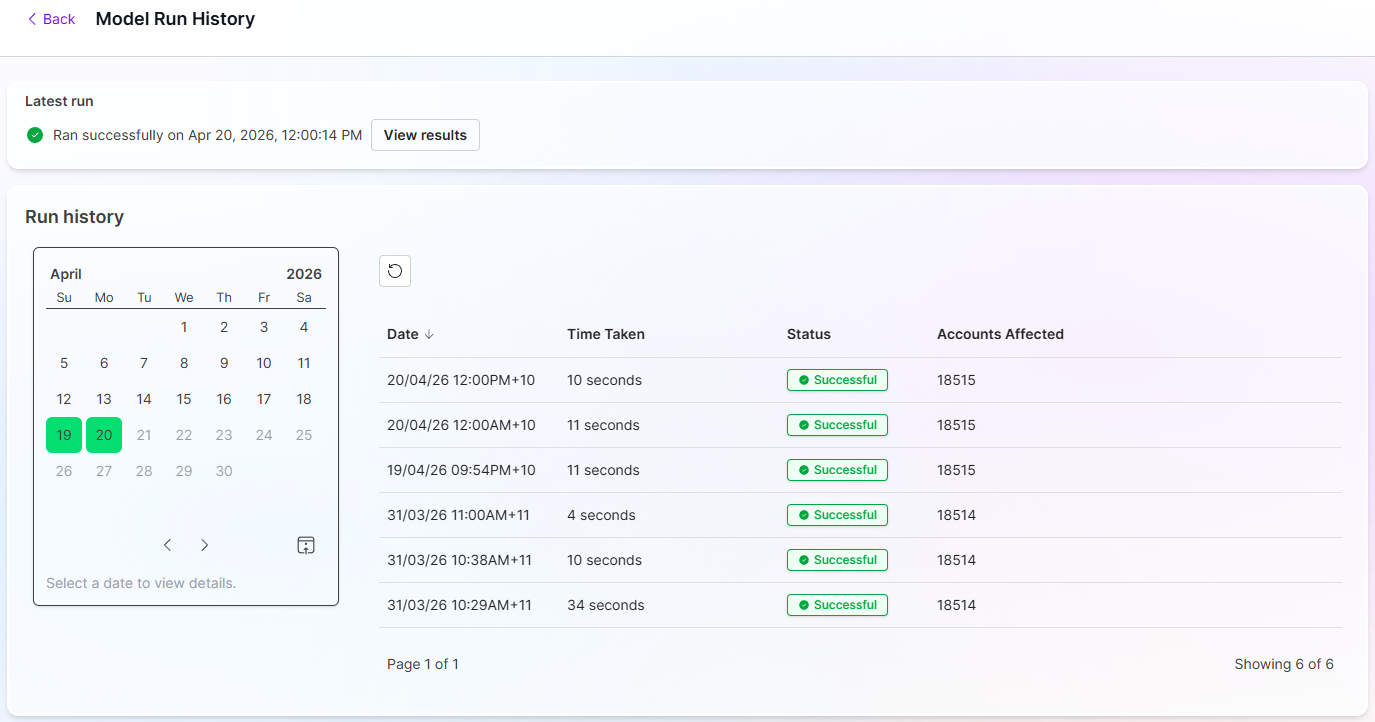 The Run History view. The calendar shows dates where runs have occurred. Select a date to populate the run list below. Select a run from the list to open its full execution result.
The run history view provides three features for reviewing past executions.
| Feature | Description |
|---|---|
| Latest Run | Displays the most recent execution at the top of the page. Select View Result to open the full execution result detail. |
| Run history calendar | A calendar view with indicators on dates where the state model has run. Select a date to view all runs that occurred on that day. |
| Run history list | The list of runs for the selected date. Select a run to open its full Model Execution Results. |
Viewing a Run Result
To view the detail of any past run result:
- From the latest run panel: select View More
- From the run history list: select View Results
Apporetum opens the Model Execution Results view with the same Overview, Audit, States, and Transitions tabs described above.
Compliance and Audit Support
Run history supports your organisation's compliance requirements by providing evidence that identity governance processes have been operating according to policy.
| Compliance use case | How run history supports it |
|---|---|
| Access reviews | Audit tab records confirm when access was granted or revoked and what triggered each change |
| Incident investigation | Filter run results by date and use the Audit tab to trace when a specific account changed state |
| Policy validation | Execution results confirm that state model rules are executing as intended |
| Regulatory evidence | Run history records provide a timestamped trail of all lifecycle events across the identity landscape |
Run history is retained according to your organisation's Apporetum retention configuration. Contact your Apporetum administrator if you need to confirm the retention period applicable to your environment.